
Leitmotif Usage
This page is for the person sitting in front of Leitmotif and trying to author a scene.
Leitmotif is not a separate runtime. It is an editor for choreography data the game already knows how to load.
The Basic Loop
Section titled “The Basic Loop”flowchart LR open[Open scene or folder] select[Select sequence] trigger[Choose trigger] beats[Arrange steps and beats] preview[Preview and scrub] check[Check findings] export[Export to game]
open --> select select --> trigger trigger --> beats beats --> preview preview --> check check --> exportIn practice:
- Open a scene file or a folder of scene files.
- Select a sequence in the left pane.
- Decide what starts it in the trigger panel.
- Add, remove, move, or edit beats on the timeline.
- Use the stage to place world-point actions when possible.
- Run Check.
- Export only once the scene validates.
The Screen
Section titled “The Screen”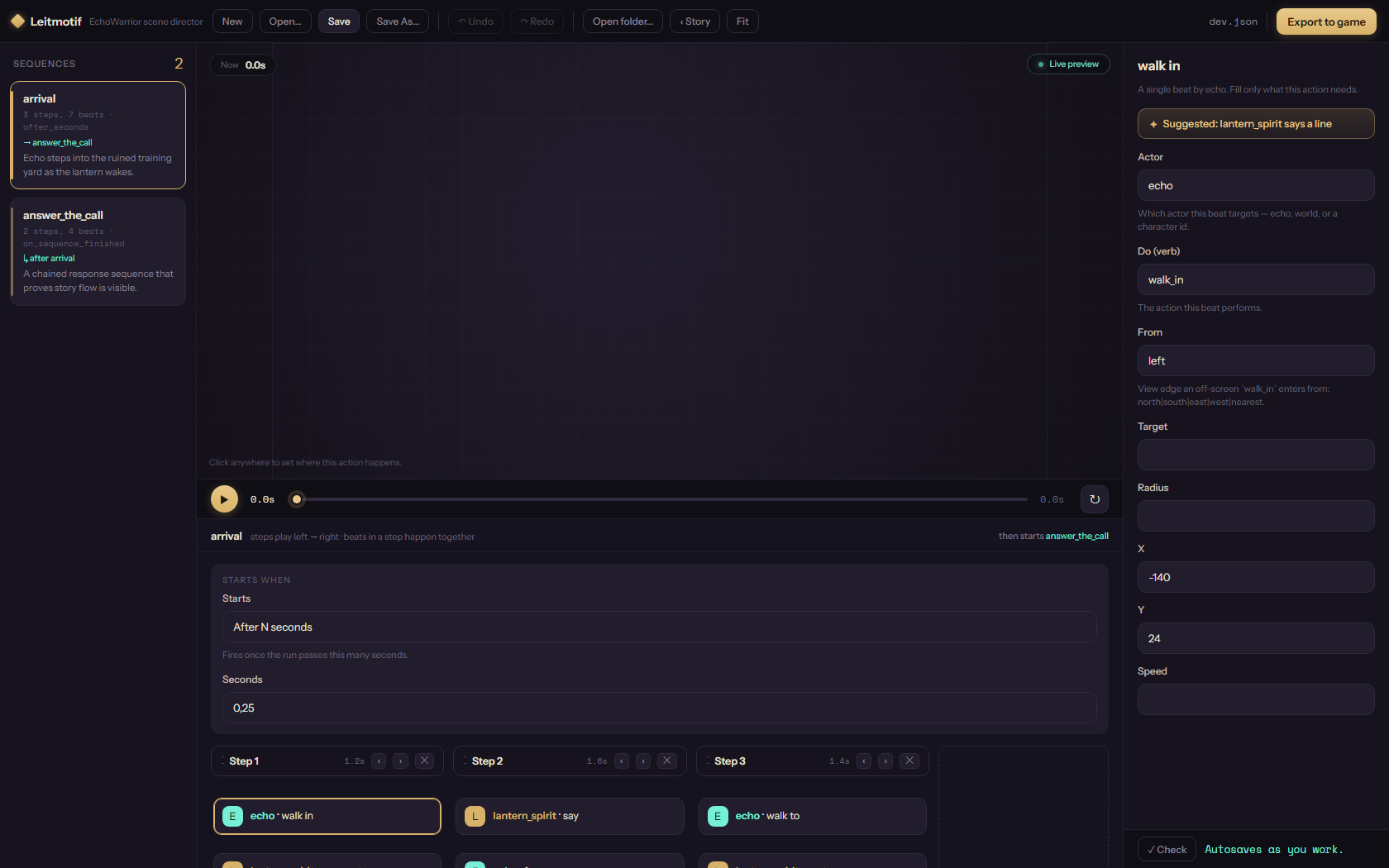
| Area | What it is for |
|---|---|
| Header | New, open, save, undo, redo, story mode, and export. |
| Sequences | The named choreography units in the current scene. |
| Stage | A preview shell and placement surface for world-point beats. |
| Transport | Play, pause, scrub, and rebuild the preview. |
| Timeline | Ordered steps. Beats inside one step run together. |
| Trigger panel | The condition that starts the selected sequence. |
| Inspector | The selected beat’s actor, verb, and relevant fields. |
| Validation ribbon | Check the scene and apply safe fix suggestions. |
Scene Mode
Section titled “Scene Mode”Scene mode is the normal beat-editing workspace.
flowchart TB    sequence[Sequence]    trigger[Starts when]    step1[Step 1]    step2[Step 2]    beatA[Beat]    beatB[Beat]    inspector[Inspector]
    sequence --> trigger    sequence --> step1    sequence --> step2    step1 --> beatA    step1 --> beatB    beatA --> inspector
A sequence is the thing the game starts. A step is a moment in time. Beats inside the same step happen in parallel.
Good first edits:
- change a trigger from
AlwaystoAfter N seconds - add a
saybeat after awalk_in - drag a beat to another step
- select a
walk_tobeat and click the stage to setxandy - press
?to learn the shortcuts
Story Mode
Section titled “Story Mode”Story mode is for opening a folder of scenes and seeing how scene files chain.
flowchart LR    folder[Assets/Data/scenes]    graph[choreo graph --json]    canvas[Story canvas]    layout[.leitmotif/layout.json]
    folder --> graph    graph --> canvas    layout --> canvas
The graph comes from the game’s own choreo graph --json output. Node positions are stored in a .leitmotif/layout.json sidecar beside the scene folder. That sidecar is editor layout data, not gameplay data.
Use story mode when you care about whole-story flow. Use scene mode when you care about one sequence’s beats.
Adding Beats
Section titled “Adding Beats”Use the + beat control on a step. The picker shows:
- the most likely suggested next beat
- the broader verb list from
src/vocab.ts
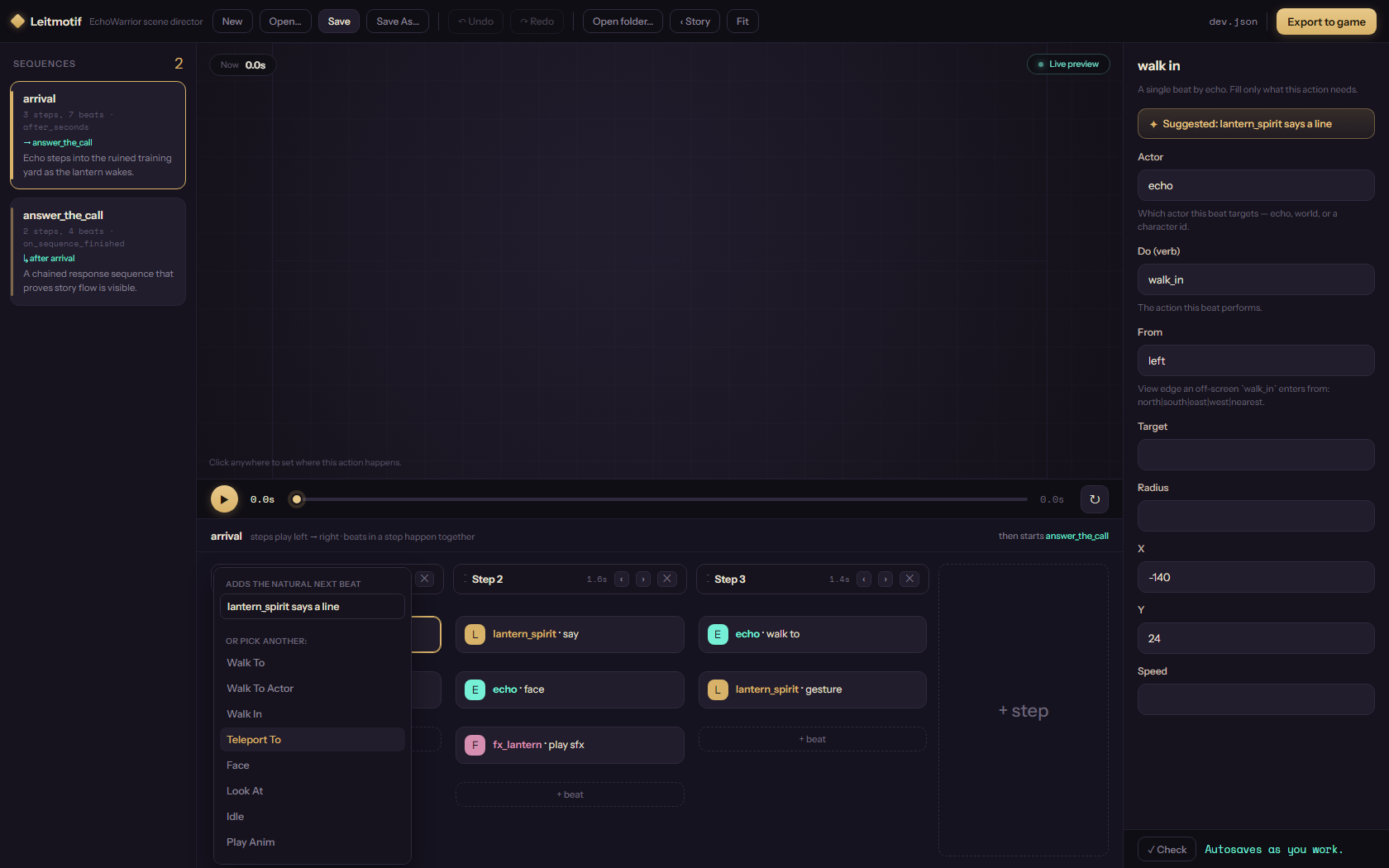
After a beat is added, select it and edit fields in the inspector. The form shows only fields relevant to the selected verb.
Placing Beats On The Stage
Section titled “Placing Beats On The Stage”Some verbs carry a world point:
walk_towalk_inteleport_tospawn_fxspawn_enemy
When one of these beats is selected, click the stage to set the position. This is the normal path for coordinate fields. Typing numbers is still possible, but it should not be the primary authoring experience.
Using Suggestions
Section titled “Using Suggestions”Leitmotif’s current suggestions are deterministic and offline. They do not call an external service.
flowchart LR    context[Current scene context]    rules[RuleProvider]    suggestions[Suggested beat / moment / fix]    doc[SceneDoc]
    context --> rules    rules --> suggestions    suggestions --> doc
Suggestions are useful for:
- “what should happen after this beat?”
- inserting a small ready-made moment
- fixing a known validation finding
- snapping a placed point near an actor
Treat a suggestion as a draft, not as intent. The writer still chooses.
Checking And Exporting
Section titled “Checking And Exporting”Use Check while authoring. Check asks choreo validate for findings. If the finding is narrow and safe, the validation ribbon can offer a Fix button.
Export is stricter:
sequenceDiagram    participant Writer    participant Leitmotif    participant Choreo as choreo    participant GameFile as Game scene file
    Writer->>Leitmotif: Export to game    Leitmotif->>Choreo: validate current scene    Choreo-->>Leitmotif: clean or findings    alt clean        Leitmotif->>Choreo: convert JSON to TOML        Choreo->>GameFile: write target    else has errors        Leitmotif-->>Writer: show findings, write nothing    end
The editor should not write invalid content to the game. If export refuses, fix the finding or decide whether the engine contract needs to change.
Keyboard Shortcuts
Section titled “Keyboard Shortcuts”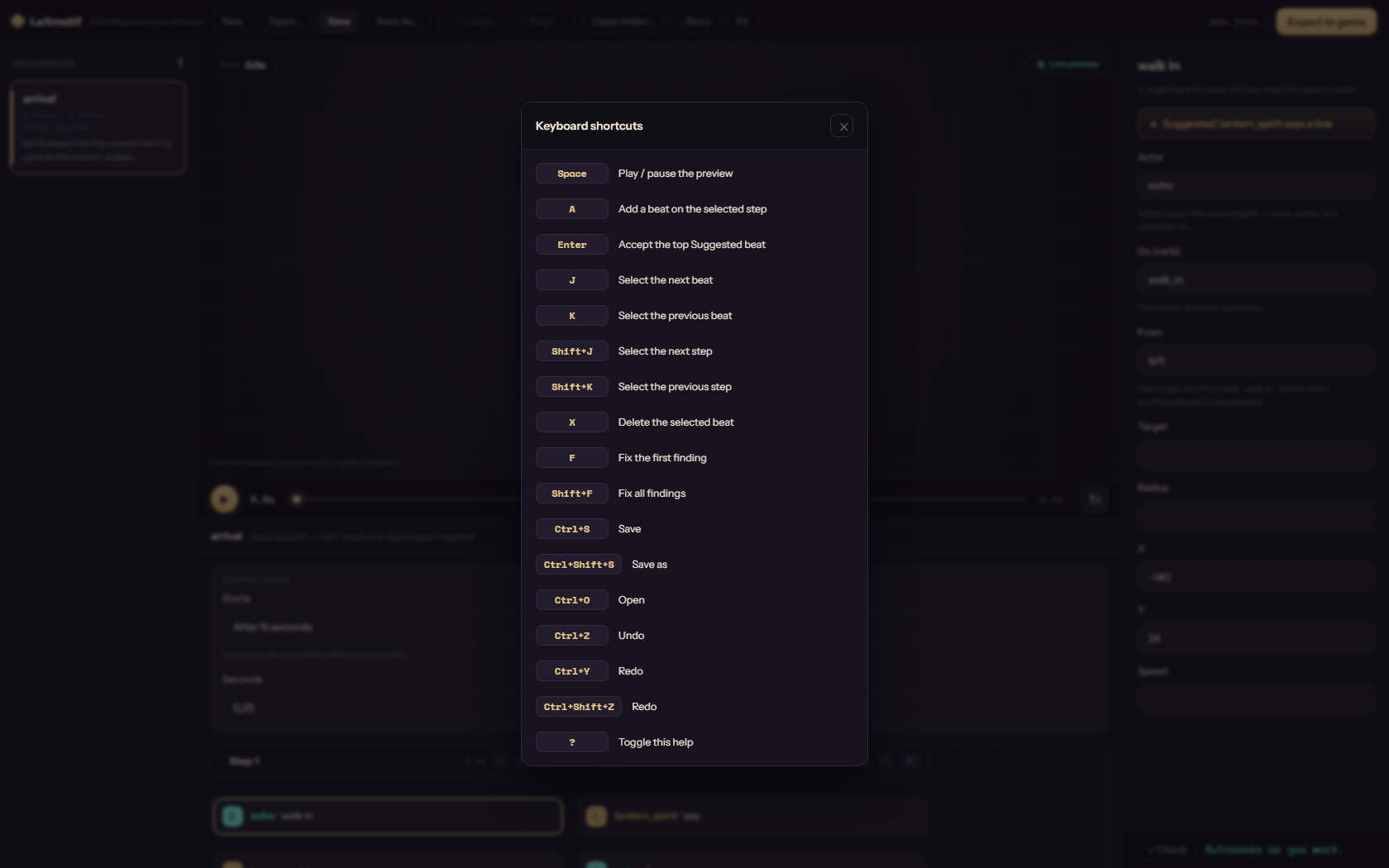
High-frequency shortcuts:
| Key | Action |
|---|---|
Space |
Play or pause preview. |
A |
Add a beat on the selected step. |
Enter |
Accept the top suggested beat. |
J / K |
Move beat selection. |
Shift+J / Shift+K |
Move step selection. |
X |
Delete selected beat. |
F |
Apply first available fix. |
Shift+F |
Apply all available fixes. |
Ctrl+Z / Ctrl+Y |
Undo / redo. |
? |
Toggle shortcut help. |
Web Shell Limits
Section titled “Web Shell Limits”npm run dev is excellent for UI work, screenshots, and tests. It does not have native Tauri access.
In web-only mode:
- native file dialogs are unavailable
- bridge commands return friendly fallback errors
- live preview from
choreois unavailable - dev-only
window.__lmLoad(json)can load sample data for visual checks
For real file open, save, preview, graph, validate, and export work, run the Tauri app with CHOREO_BIN set.